Getting Started
Ensure a training has a trainee and a role.
A training can not be started if the training doesn't have a trainee and a role setup yet. To do this, open a training or create one in the EESP Editor.

In this new training you can see that if I select a VR Trainee module in the object list, the Trainee Role on the right Properties panel shows "any". This usually means there is no role set up yet. Select one from the role dropdown. If there are none, create one using the + button and select it in the dropdown.
If you need more than 1 role in the training, you can use the "Add" button in the object list to add a second VR module. Create and assign a role to that VR module as well.
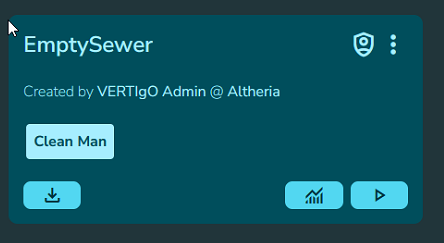
Save the training and verify by going to the console and check if the roles are shown on the training. In this case "Clean Man" is one of the roles I choose.
Important: If a training has 2 VR modules, it can only be launching using 2 trainees/headsets. Creating 1 training with only 1 VR module is useful for testing the system without needing a second person to help you or for demonstrations.
Importing a scenarios.
Members of the consortium should have received pre-made scenarios made downloadable as .zip files. You do not need to unzip these file.
To import them, navigate to the Trainings page on the console.

Use the upload training button in the top right to select and upload the .zip file of the scenario. The training will now be available on the trainings page.