Media library
This is where all the imported objects can be found and are ready to be added to the training.
Import object
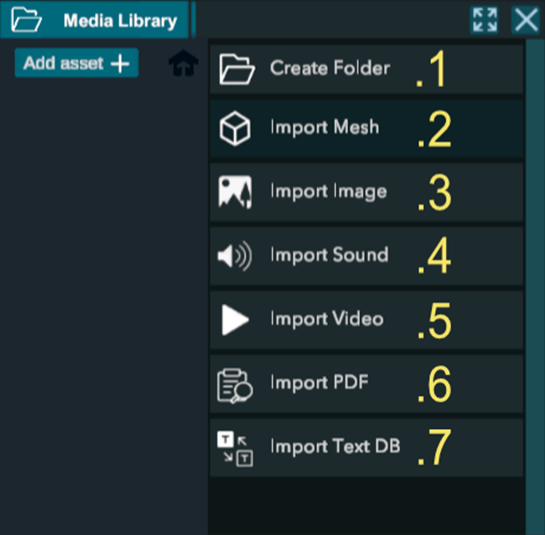
You can add a wide variety of objects to your training.
1. Folder:
Create a folder in the media library to structure your imported objects
2. Import mesh:
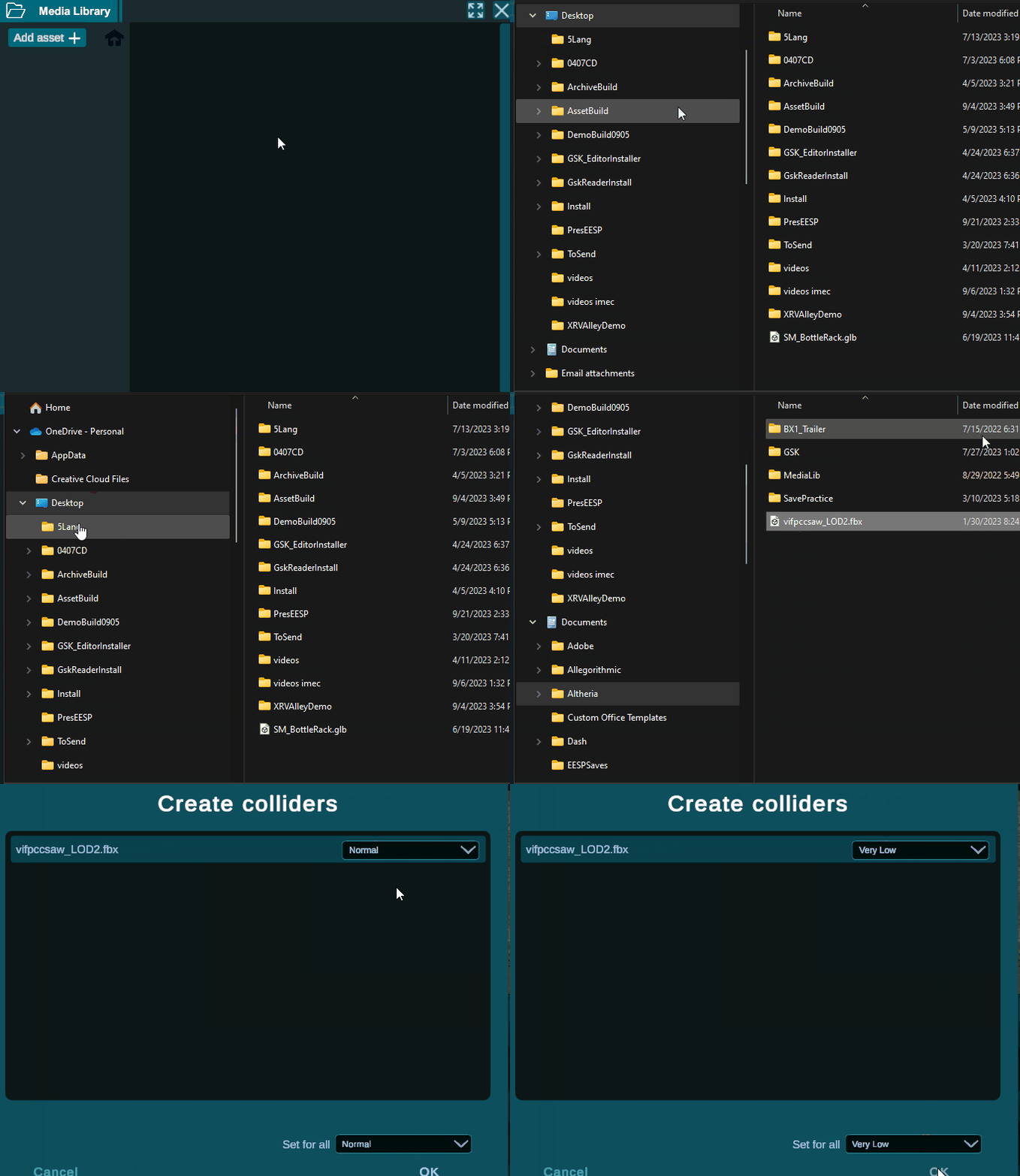

Import 3d object: we accept most 3D formats, although some work better for VR than others.
We highly recommend using the .GLB, .GLTF, or .FBX formats.
Additionally, you can import animated 3D assets.
You will be asked to create a collider for the imported object. A collider is a box that surrounds the object. The higher the resolution, the closer it will be to the actual shape of the object.
This setting defines the precision when you interact with or grab the object..
Tip: Set the collider resolution to low for most objects, except for those that are concave or have holes, where higher resolution may be needed for more accurate interactions.
3. Import Image:
You can import most types of images, which are useful for adding backgrounds to text, icons, or written documents within your training.
4. Import sound:
You can import music or recorded audio to include voices explaining of what the trainee needs to do. . Sounds are instantiated by steps within the training.
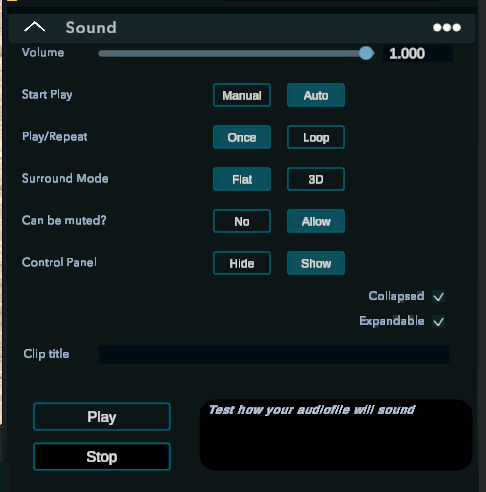
Volume: define the intensity
Play/repeat: Once (play one time then stop) / Loop( infinite looping of the sound)
Surround mode:
-Flat: 2D sound that can be heard wherever you are
-3D: Can be heard in a small area where it is located.Muted: Can the trainee mute it inside VR or not
Control panel: Can the trainee control the sound inside VR
Collapsed: Collapsed the panel inside VR
Expandable: Can the trainee make the panel larger
5. Import video:
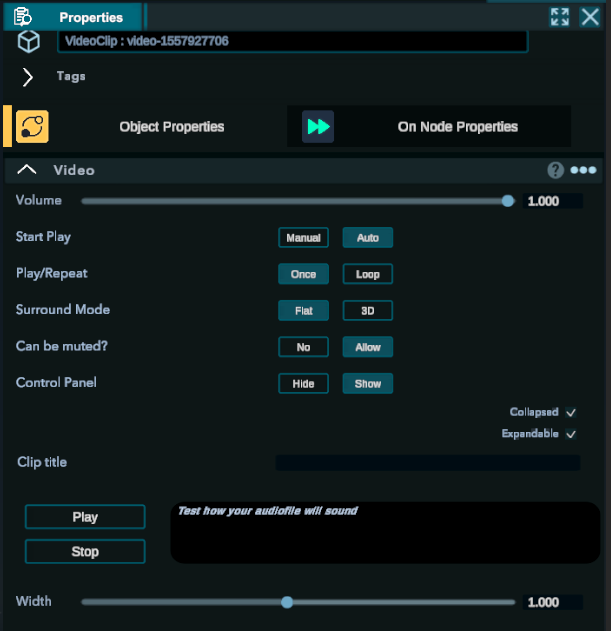
Volume: define the intensity
Play/repeat: Once (play one time then stop) / Loop( infinite looping of the sound)
Surround mode:
-Flat: 2D sound that can be heard wherever you are
-3D: Can be heard in a small area where it is located.Muted: Can the trainee mute it inside VR or not
Control panel: Can the trainee control the sound inside VR
Collapsed: Collapsed the panel inside VR
Expandable: Can the trainee make the panel larger
Width: Size of the screen
7. Import Text Database/CSV:
Import datasheet from google sheet or Excel to add text inside the training.
We recommend to use .CSV file
A. Connect: By activating the connection from a text or a Action Panel. You can directly plug your CSV text in it.
B. The name or note you give to your text. This is purely made to help you organize yourself.
C. The main language text.
D. The translation that was made. You can have as many languages as you wish.
Tips: When you want to add things or edit existing text. We do not recommend making directly inside the text prompt. It is better to change it in your file and re import it by clicking on the file while maintaining the CTRL key.