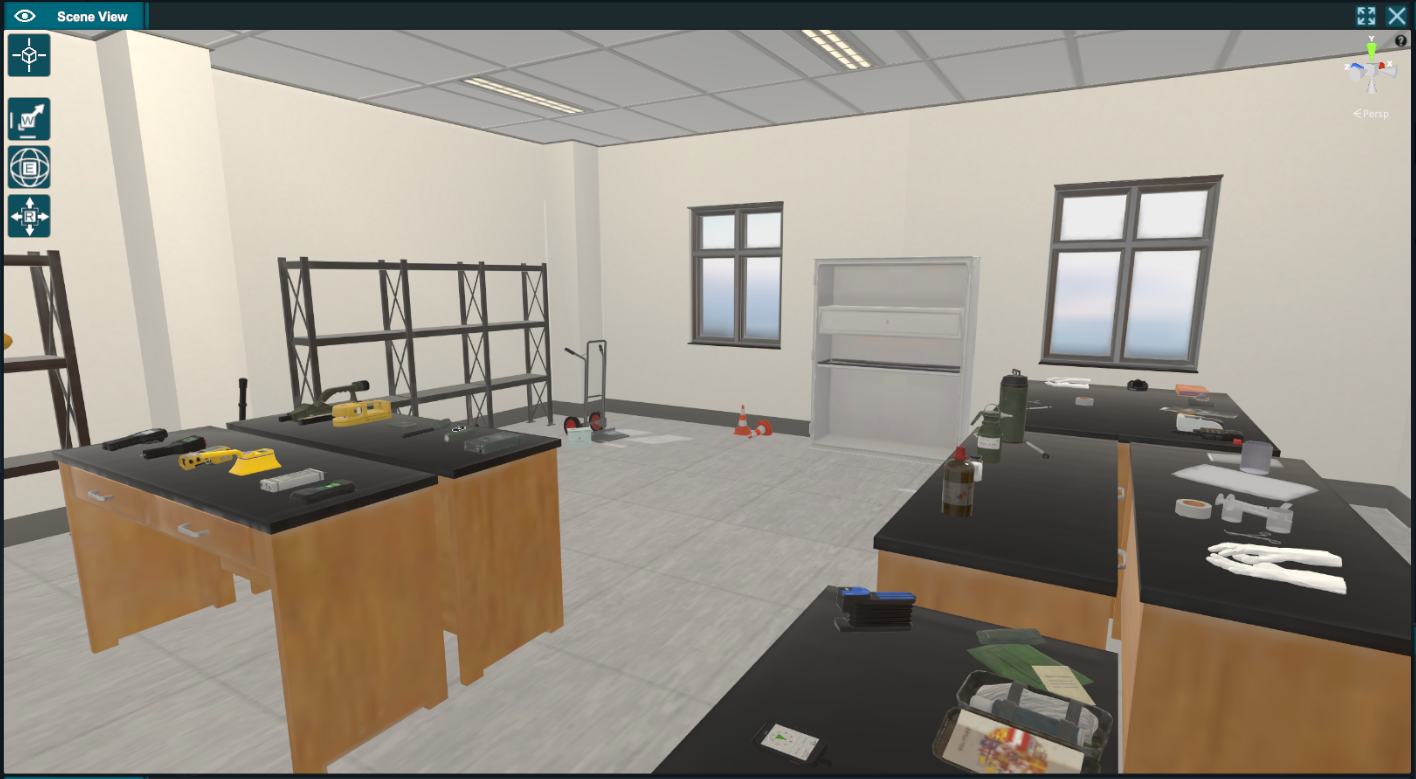
Scene view
That is where you interact with the 3D scene.
Moving in the 3D scene
There are 2 different ways to move the view in the scene.
Depending on your preference, you might want to test both of them.
We highly recommend using the F key to zoom in on the selected object.
a. Acting like a camera
Moving using mainly the mouse.
Pan: Press Middle/Scroll mouse button while moving the mouse
Zoom In/Out: Scroll middle mouse button
Tilt: Holding Right click mouse
Rotate: If an object is selected +Right click mouse (rotate around an object)
b. Acting like a flying drone
Moving using mainly the keyboard.
Moving: Holding Right mouse click + WASD
Up/Down: Right mouse click + EQ
Moving object in the 3D scene
There are 2 ways to move objects in the scene.
One can be done directly in the Scene view, and the other will require using the editor tab.
a. Moving object with the mouse.
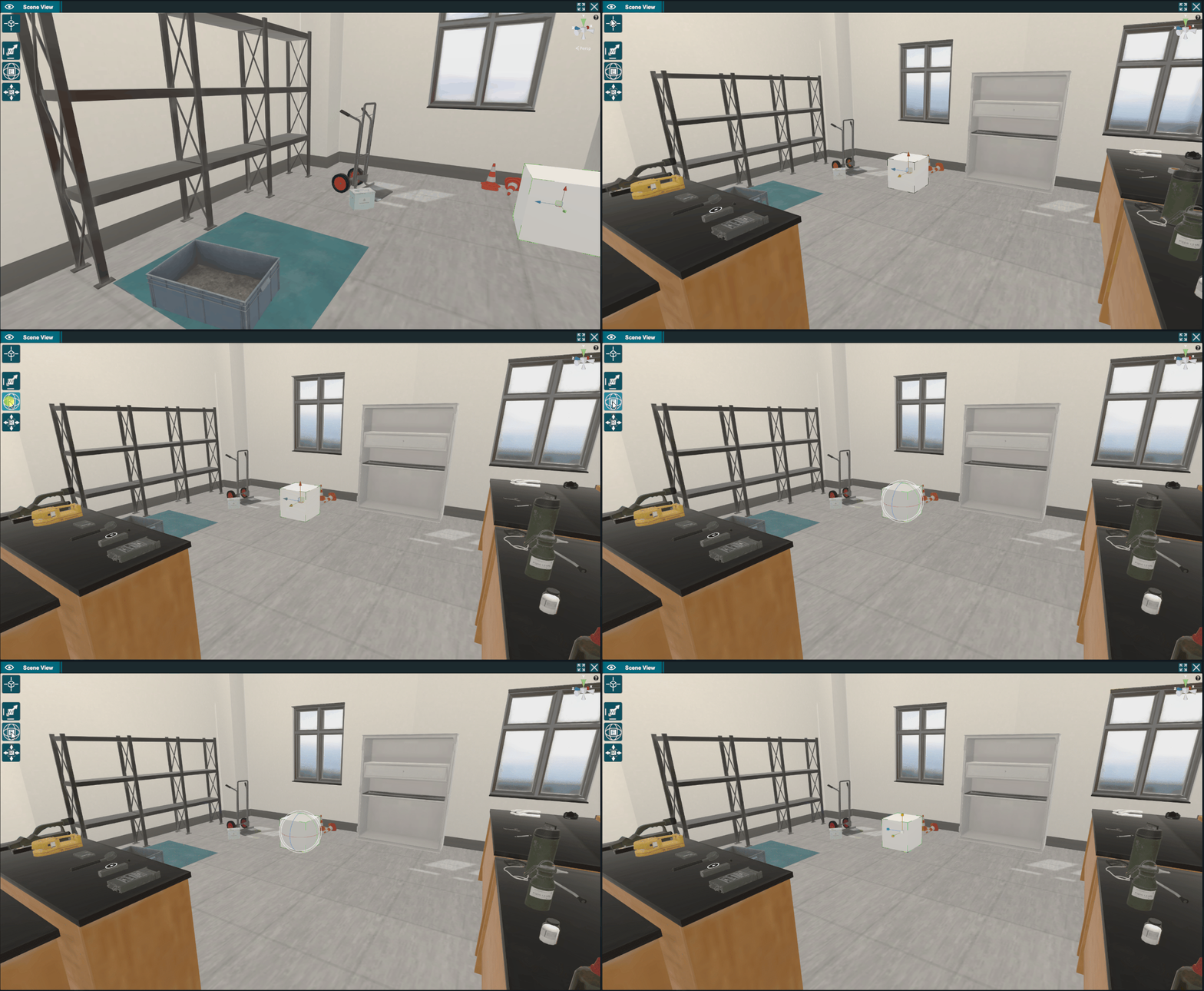
When you select an object, you can see what we call a gizmo on it. Symbolized by arrows going in 3 different directions (the axes).
You can either slide, rotate or resize the object. The gizmo will change depending on the interaction you want to perform.
To change tap the corresponding key:
W: slide
E: Rotate
R: Scale
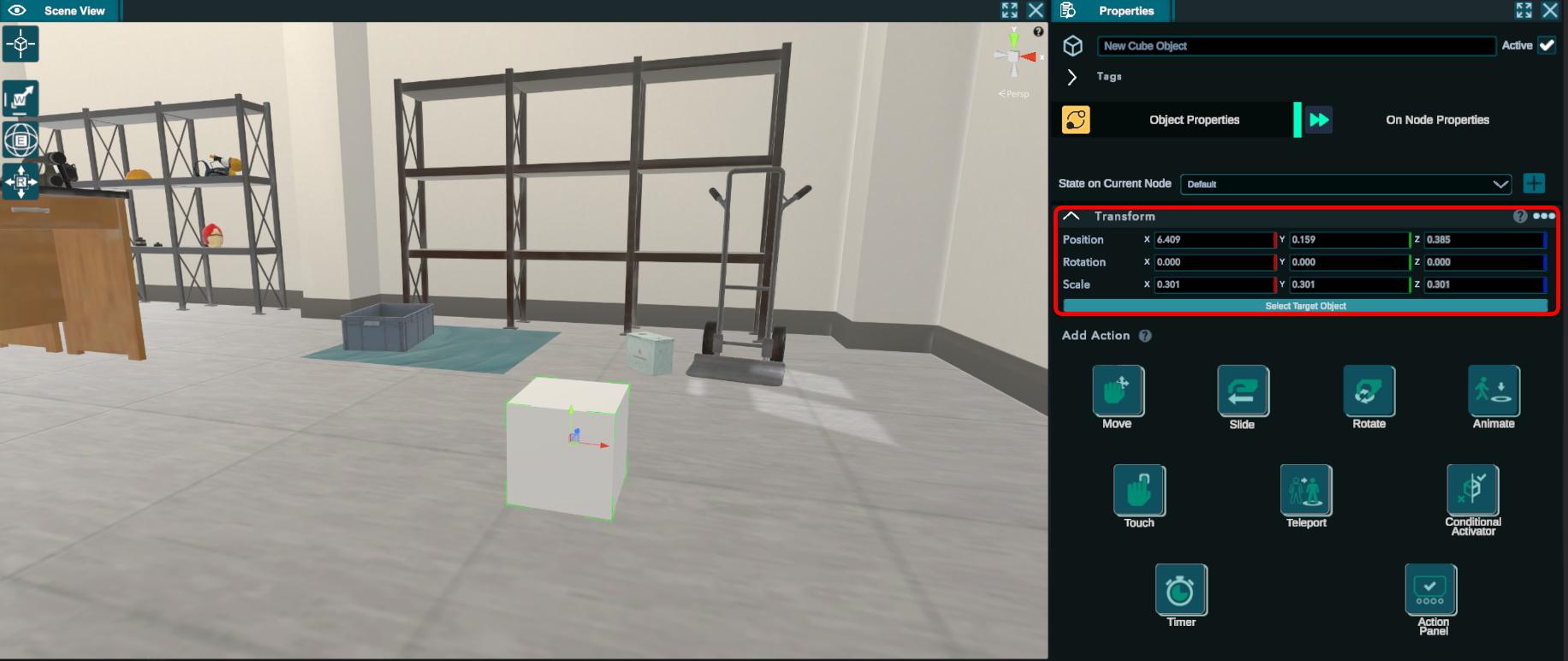
b.Moving the object using the Transform tab
When you select an object, a tab called "Transform" will appear in the node behavior of the editor tab.
You can move the object by entering precise values, and the color corresponds to the axes color of the gizmo.
c.Focus on object and auto focus
If you activate the autofocus toggle in the Object List, this option will automatically focus the scene view onto the last object you select. You can also do it manually by clicking the top left button of the scene view to focus on the selected object.


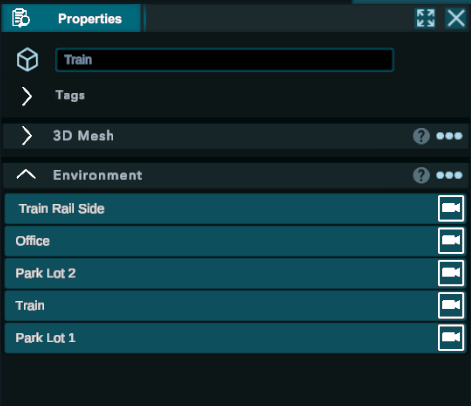
If you select the environment in the object list, you can also then find a list of points of interest in their properties. Open the Environment panel in the properties window